

knowledge Base
Every event we host is designed with intention, from the atmosphere we create to the way each session flows.
FIELDWORKS PRO Help
Fieldworks Pro Help Center
Welcome to Fieldworks Pro
This help center takes you from a brand-new account to running a full job in Fieldworks Pro — quote to close. Start with Getting Started, then use any article as a reference whenever you need it.
Browse by topic
Getting Started
Everything you need to set up your Fieldworks Pro account and send your first quote. Start here on day one, then use these articles as a reference anytime.
Customers & Contacts
Add and manage the customers and contacts behind every quote and project — including how contacts behave when you sync with QuickBooks.
Quotes & Estimating
Build professional, itemized quotes, send them to customers, and turn a won quote into a live project.
Project Management
Run every job from setup to closeout — stages, daily logs, punch lists, and product receiving, all in one project.
Scheduling & Crew
Assign your crews and equipment across the week and keep the field organized.
Invoicing
Bill your work your way — with or without QuickBooks — from deposits through final invoices.
Mobile App
Everything your field crew needs on their phone — the app itself, clocking in and out, and tracking time from the jobsite.
Reporting
Understand your system reports and how to use them to run payroll, cost jobs, and see the health of your business.
Help Center
Getting Started
Fieldworks Pro's quick start guide walks you through setting up your account. Watch each video and follow along, or use the chapter links to jump to a specific topic. Prefer to read? Each step links to a full written guide.
Step #2
Company Branding & Details
Video coming soon
Step #3
User Roles & Permissions
Video coming soon
Step #4
Adding Your Team
Video coming soon
Step #5
Products & Services + Tax
Video coming soon
Getting Started
Quick Start Guide: From Zero to Your First Quote
Complete these six steps in order to set up your account and send your first quote.
1
Set up company branding & details
In the app: Settings › Company › Manage Branding
- Upload your logo
- Add your company locations
- Customize the header and footer for quotes and invoices
- Add your company contact details

2
Create your user roles
In the app: Settings › System › Manage User Roles
- Click Add role and name it (e.g. Installer, Project Manager)
- Select the system permissions for that role
- Repeat for each role you need

Roles must exist before you can add users. Installer is a field/mobile role; Project Manager is an office/desktop role.
3
Add your team — desktop & field
In the app: Employee/Contractor › Add Employee
- Add each desktop user (office) and field user (mobile app)
- Assign each person a role from Step 2

Field app users are unlimited on Medium and Large plans — add every installer, helper, and sub at no extra cost.
4
Add or import customers
In the app: Contacts › Add Customer / Import
- Add manually, or import a spreadsheet to bring your list in at once

5
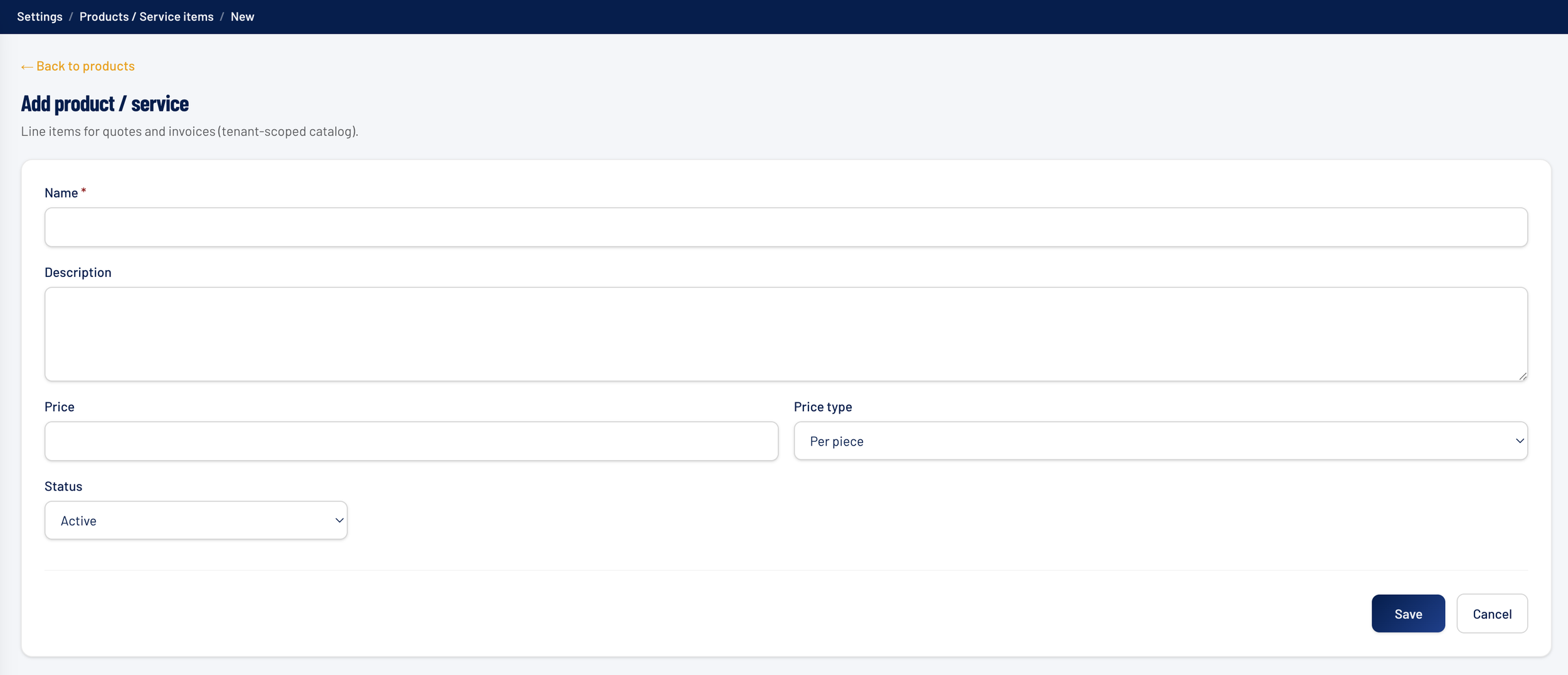
Add products & services
In the app: Settings › Company › Products / Services
- Add at least one product or service item — required to build a quote
- Add your common line items, units, and pricing
Quoting taxable items? Set your tax rates first under Settings › Company. Not taxed? Skip it.
6
Build and send your first quote
In the app: Quotes › New Quote
- Click New Quote and select your customer
- Add line items and set quantities
- Change status Working → Sent, then click Open in Email

Getting Started
Company Branding & Details
Logo, locations, quote/invoice header & footer, and contact details.
Coming soon This article is being written. Check back shortly.
Getting Started
User Roles & Permissions
Create roles and set what each user can access.
Coming soon This article is being written. Check back shortly.
Getting Started
Adding Your Team (Desktop & Field Users)
Add office and field users and assign their roles.
Coming soon This article is being written. Check back shortly.
Getting Started
Products & Services + Tax Setup
Build your catalog and set tax rates for taxable work.
Coming soon This article is being written. Check back shortly.
Help Center
Customers & Contacts
Add and manage the customers and contacts behind every quote and project — including how contacts behave when you sync with QuickBooks.
Customers & Contacts
Adding & Importing Customers
Add customers by hand or import your whole list at once.
Coming soon This article is being written. Check back shortly.
Customers & Contacts
Managing Contacts When Synced to QuickBooks
How contacts sync and stay in step with QuickBooks.
Coming soon This article is being written. Check back shortly.
Help Center
Quotes & Estimating
Build professional, itemized quotes, send them to customers, and turn a won quote into a live project.
Quotes & Estimating
Building & Sending a Quote
Create an itemized quote and send it to your customer.
Coming soon This article is being written. Check back shortly.
Quotes & Estimating
Converting a Won Quote into a Project
Turn an accepted quote into a live project in one click.
Coming soon This article is being written. Check back shortly.
Help Center
Project Management
Run every job from setup to closeout — stages, daily logs, punch lists, and product receiving, all in one project.
Setting Up Stages, Checklists & Flags Soon
Configure the phases, checklists, and flags projects use.
Managing an Active Project (Scope & Daily Logs) Soon
Track scope of work, daily logs, and photos.
Punch List Management Soon
Track and clear punch items through to closeout.
Logging a Receiving Entry (BOL) Soon
Record a delivery and its line items against a PO.
Tracking Product from PO to Delivery Soon
Follow product from receipt through staging to delivery.
Project Management
Setting Up Stages, Checklists & Flags
Configure the phases, checklists, and flags projects use.
Coming soon This article is being written. Check back shortly.
Project Management
Managing an Active Project (Scope & Daily Logs)
Track scope of work, daily logs, and photos.
Coming soon This article is being written. Check back shortly.
Project Management
Punch List Management
Track and clear punch items through to closeout.
Coming soon This article is being written. Check back shortly.
Project Management
Logging a Receiving Entry (BOL)
Record a delivery and its line items against a PO.
Coming soon This article is being written. Check back shortly.
Project Management
Tracking Product from PO to Delivery
Follow product from receipt through staging to delivery.
Coming soon This article is being written. Check back shortly.
Help Center
Scheduling & Crew
Assign your crews and equipment across the week and keep the field organized.
Scheduling & Crew
Scheduling Your Crew for the Week
Assign crews and shifts across the schedule.
Coming soon This article is being written. Check back shortly.
Scheduling & Crew
Managing Assets & Equipment
Schedule trucks, tools, and shared equipment.
Coming soon This article is being written. Check back shortly.
Help Center
Invoicing
Bill your work your way — with or without QuickBooks — from deposits through final invoices.
Invoicing
How to Use With QuickBooks
Invoice with QuickBooks sync turned on.
Coming soon This article is being written. Check back shortly.
Invoicing
How to Use Without Syncing to QuickBooks
Invoice directly in Fieldworks Pro, no sync.
Coming soon This article is being written. Check back shortly.
Invoicing
Sending Invoices (Deposit, Progress, Final)
Send deposit, progress, and final invoices.
Coming soon This article is being written. Check back shortly.
Help Center
Mobile App
Everything your field crew needs on their phone — the app itself, clocking in and out, and tracking time from the jobsite.
Mobile App
About the Mobile App
What the field app does and how crews use it.
Coming soon This article is being written. Check back shortly.
Mobile App
Clocking In / Out
How crew members clock in and out on mobile.
Coming soon This article is being written. Check back shortly.
Mobile App
Time Tracking from the Field
Capture accurate installer hours from the jobsite.
Coming soon This article is being written. Check back shortly.
Help Center
Reporting
Understand your system reports and how to use them to run payroll, cost jobs, and see the health of your business.
Reporting
Timesheets
Review and export crew timesheets.
Coming soon This article is being written. Check back shortly.
Reporting
Labor Costing
See labor cost by project, employee, and date range.
Coming soon This article is being written. Check back shortly.
Reporting
Overtime
Track overtime hours and cost.
Coming soon This article is being written. Check back shortly.
Reporting
Summary Report
The high-level roll-up of project and labor numbers.
Coming soon This article is being written. Check back shortly.